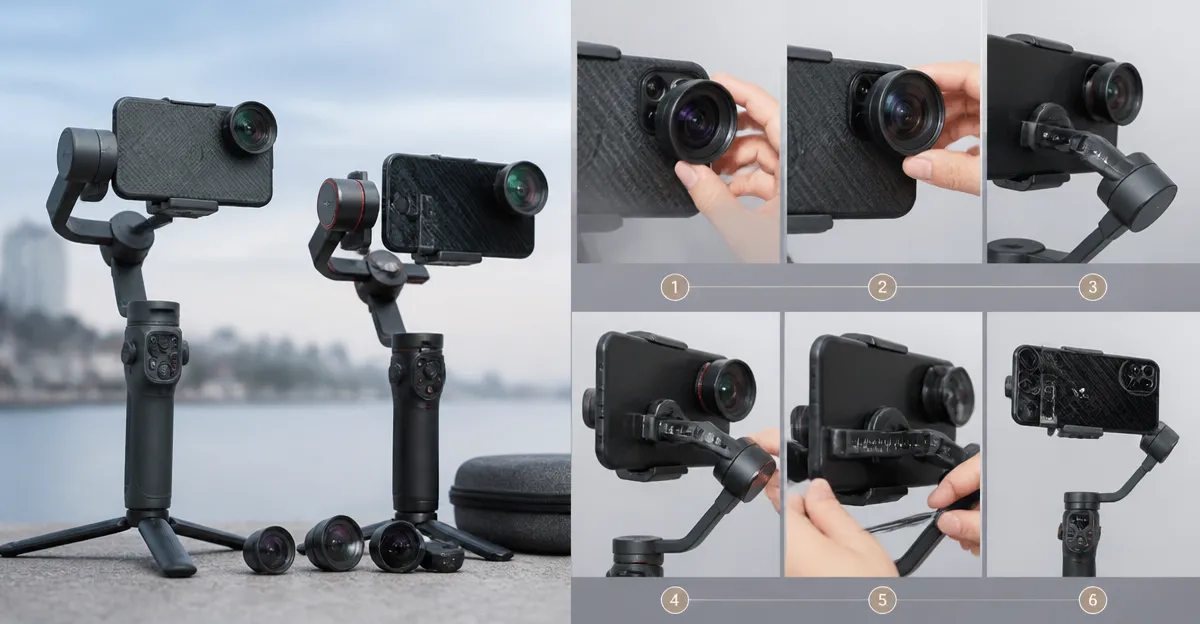
How to Balance Moment Lenses on DJI Osmo Mobile & Zhiyun Gimbals — Compatibility Guide
Introduction
This guide explains how to attach and balance the Moment 18mm Wide Angle Lens on DJI Osmo Mobile series gimbals as well as on comparable Zhiyun models. Readers will learn why proper balancing matters, which accessories simplify the process, and how to avoid common pitfalls that can damage motors or degrade image quality. By following the steps, creators can achieve smooth footage while taking advantage of the lens's ultra‑wide perspective.
What You'll Need
- Moment 18mm Wide Angle Lens
- DJI Osmo Mobile 7P
- DJI Osmo Mobile 7
- DJI Osmo Mobile 8
- Compatible phone case with Moment mount (sold separately)
- Small screwdriver (optional for fine‑tuning)
Step‑by‑Step Instructions
1. Prepare Your Smartphone and Lens
Begin by ensuring the phone is fully charged and the DJI Mimo app is installed from the official DJI website. The Moment 18mm lens requires a dedicated mount; attach the lens to a Moment case or M‑series mount as described in the lens packaging. The mount adds a few grams of weight, which will affect the gimbal's balance.
The Moment 18mm Wide Angle Lens is priced at $29.00, carries a 4.5/5 rating from 1,387 reviews, and is praised for its crisp, distortion‑free images. Its solid construction makes it suitable for repeated mounting on gimbals.
2. Mount the Phone on the Gimbal
Unfold the chosen DJI gimbal—whether the Osmo Mobile 7P, Osmo Mobile 7, or Osmo Mobile 8—by extending the arm and engaging the magnetic phone clamp. The magnetic design allows the phone to snap on quickly, a feature highlighted in multiple customer reviews.
Position the phone so that its center of gravity aligns with the gimbal's pivot point. For the Osmo Mobile 7P, the maximum operating time is 10 hours, and the built‑in extension rod and tripod provide additional flexibility for static shots.
3. Attach the Moment Lens
Slide the Moment lens onto the phone case while the phone remains clamped on the gimbal. Ensure the lens sits flush against the case and that the front element faces outward. Because the lens adds forward weight, the gimbal's balance will shift toward the front.
If the lens interferes with the gimbal's arm—an issue reported by some users of earlier DJI models—adjust the phone's position within the clamp. The Osmo Mobile 7P includes a multifunctional module that can supply extra power to the phone, reducing strain on the motors.
4. Perform Initial Balance Check
Turn on the gimbal and allow it to calibrate. Observe whether the phone with the attached lens drifts forward or backward when the motors are idle. If the phone tilts forward, slide it slightly toward the rear of the clamp; if it tilts backward, move it forward.
For the Osmo Mobile 7, the lightweight 300‑gram design makes fine adjustments easier. The built‑in tripod can be deployed to hold the gimbal steady while you make balance tweaks.
5. Fine‑Tune Using the Gimbal's Balance Controls
Many DJI models feature a balance wheel or slide mechanism on the handle. Use this to offset the extra weight of the Moment lens. Rotate the wheel until the gimbal remains level when released.
On the Osmo Mobile 8, the extension rod can be retracted slightly to bring the phone closer to the pivot, helping to counterbalance the lens. This method is especially useful for larger phones such as the iPhone 14 Pro Max, which some reviewers noted may require extra care.
6. Test Tracking and Stabilization
Activate ActiveTrack (or the native tracking feature of the 7P's Multifunctional Module) and record a short clip while walking. Verify that the subject remains centered and that the footage is smooth. If the gimbal struggles, reduce the phone's case thickness or consider a lighter Moment accessory.
Customers of the Osmo Mobile 7P reported that the dual‑lens enhanced tracking works well even with the added wide‑angle lens, provided the balance is correct.
7. Optimize for Zhiyun Gimbals (Optional)
While this guide focuses on DJI hardware, the principles apply to Zhiyun models such as the Crane 2 or Weebill S. Those gimbals also use a phone clamp and balance wheel. Mount the phone with the Moment lens, then adjust the wheel until the device remains level. Zhiyun gimbals often have a higher payload capacity, which can accommodate the lens without motor strain.
Because Zhiyun firmware may handle lens weight differently, consult the manufacturer's manual for maximum payload specifications before attaching heavy accessories.
Tips & Pro Tips
- Use the Moment lens cap when the lens is not in use to protect the optics and reduce weight.
- If the gimbal's motors disengage, as reported by a reviewer of the Moment lens on a DJI 4‑axis gimbal, switch to a newer DJI model (7P or 8) that provides more torque.
- When filming in 4K, consider zooming in slightly during post‑production to eliminate any slight edge of the gimbal arm that may appear in the frame.
- Keep the phone's case slim; bulky cases shift the center of gravity and may require additional balance adjustments.
- Take advantage of the built‑in tripod on the Osmo Mobile series for static wide‑angle shots; this eliminates the need for a separate tripod.
Troubleshooting
- Motor Overload Warning: If the gimbal beeps or stops, the combined weight may exceed the motor's capacity. Reduce weight by removing the lens or using a lighter phone case.
- Flares in Corner: The Moment lens can produce flares in the lower‑left corner. Use a small external light or adjust the angle to minimize unwanted glare.
- Lens Appears in Frame: When the lens is too wide for the gimbal arm, zoom in during editing or reposition the phone slightly backward in the clamp.
Conclusion
Balancing the Moment 18mm Wide Angle Lens on DJI Osmo Mobile gimbals—or on comparable Zhiyun models—requires careful positioning, fine‑tuning of balance controls, and awareness of payload limits. By following the steps outlined above, creators can capture expansive, distortion‑free footage while maintaining the smooth stabilization that DJI and Zhiyun are known for. Proper balance extends motor life, improves tracking accuracy, and ensures professional‑grade results.
Frequently Asked Questions
Why is it important to balance a Moment lens on a gimbal?
Proper balance prevents motor strain, extends battery life, and ensures smooth, shake‑free footage.
Which DJI Osmo Mobile models are compatible with the Moment 18mm Wide Angle Lens?
The guide covers Osmo Mobile 7, 7P, and 8 when used with a compatible phone case and Moment mount.
What accessories simplify attaching a Moment lens to a gimbal?
A phone case with a built‑in Moment mount and a small screwdriver for fine‑tuning the balance are recommended.
How can I avoid damaging the gimbal motors when using a Moment lens?
Ensure the lens is centered and the phone‑lens combo is perfectly balanced before powering on the gimbal.
Can the balancing steps be applied to Zhiyun gimbals as well?
Yes, the same principles and accessories work with comparable Zhiyun models, following the guide’s step‑by‑step instructions.